WorldCalc, Euro Calculator and custom calculators created with Calculator Builder have an Update Now command, plus an Auto-update option to schedule automatic updates.
Update Now, like the Auto-update functionality, tries to access the internet or the local network to access the currency exchange rate data specified in the software options. If this process fails, you should try to open the same data file with a web browser (select and copy the Address field, and paste it in the browser address field), and see if that also gives an error. If the browser also gives an error message, it means that the problem is not related to the calculator software settings, but rather it is very likely that a network problem or a problem on the computer serving the data is the cause of the error. It is also possible that the address for the data is incorrect, in which case you should contact the publisher of the calculator.
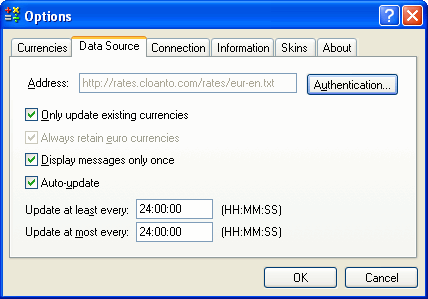
If the currency data can be loaded with a web browser, but not by the calculator, have a look at the Internet Options used by the web browser, and compare them with the settings in the calculator.
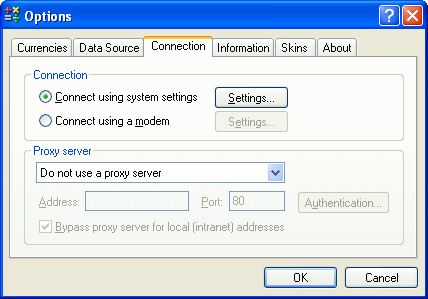
If the software still can't access the data, check the following:
- Do you normally access the internet through a LAN (your local area network), or instructing the software to establish a dial-up (modem) connection? If using a dial-up connection, you may leave the connection-related authentication and domain fields blank in order to use the default settings for that connection. If in doubt, see the settings used by your internet browser.
- Is a proxy server used to access the internet? Do not use a proxy server unless required to do so. If the proxy server requires authentication (user name and password), set the fields accordingly, otherwise leave them blank. If in doubt, see the settings used by your internet browser.
- Is the data itself password-protected? If so, set the authentication fields (Data Source/Authentication...) accordingly, otherwise leave them blank. An internet browser would pop up a dialog and ask you a user name and password when accessing a password-protected page.
- The proxy server (if any), the dial-up connection (if any), and the data itself may each require its own, different, authentication data (user name and password). The software has three different Authentication dialogs for these three different items.
If you still experience problems, make sure that all the fields, including the data address and the authentication settings, if any, have the correct uppercase/lowercase letters. This data is usually case-sensitive.
The calculator software uses a Windows system library named WININET.DLL in order to access data on the internet. This library is missing from old versions of Windows 95, but is included in Internet Explorer upgrades. The version of WININET.DLL which is included with version 3 of Internet Explorer does not support certain very unusual proxy server authentication configurations, nor does it support "Windows NT Challenge/Response" authentication. If you believe that you are experiencing such an authentication problem on Windows 95, we would advise to install Internet Explorer 4 or higher, in order to update certain internet-related system libraries.
We never received a report concerning a problem that could not be solved by the steps described above. If you nevertheless need to contact Technical Support about a connection problem, please indicate the version of your operating system (right-click My Computer and select Properties), the version of Internet Explorer, if installed, and the version of the WININET.DLL system file (right-click the file and select Properties), which is usually located in the Windows/System directory on the system partition. If you cannot find WININET.DLL, try and locate it using the Find Files or Folders function from the Start menu.
Related Links





